
How to Create a WiFi QR Code: Share Your Network Instantly
Create a QR code that lets guests connect to your WiFi without typing passwords. Perfect for homes, offices, cafes, and hotels.
Tired of repeating your WiFi password to every guest? A WiFi QR code lets visitors connect to your network instantly by simply scanning with their smartphone. No more spelling out complex passwords or watching guests struggle to type them correctly.
What is a WiFi QR Code?
A WiFi QR code is a special type of QR code that contains your network credentials in a format smartphones automatically recognise. When scanned, the phone offers to connect to your WiFi network—no manual password entry required.
The QR code encodes three key pieces of information:
- SSID: Your network name
- Password: Your network password
- Security type: WPA, WPA2, WPA3, or WEP
How WiFi QR Codes Work
WiFi QR codes use a standardised format that all modern smartphones understand. The encoded data follows this structure:
WIFI:T:WPA;S:NetworkName;P:Password;;
Where T is the security type, S is the SSID (network name), and P is the password. When a phone camera reads this format, it automatically offers to join the network.
Step-by-Step: Creating Your WiFi QR Code
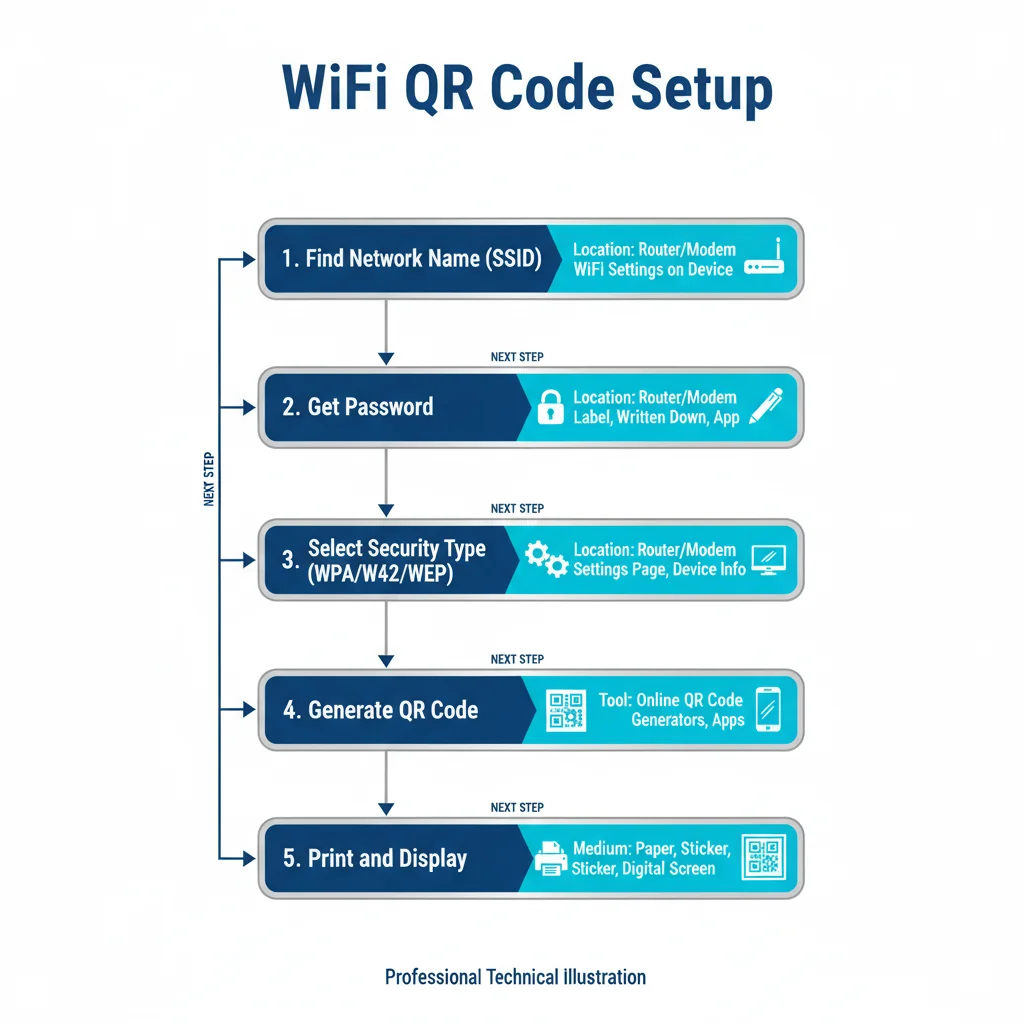
Step 1: Find Your Network Credentials
You'll need three things:
- Network name (SSID): The exact name that appears when devices search for WiFi
- Password: Your WiFi password (case-sensitive)
- Security type: Usually WPA2 for most modern networks
Where to find these:
- Check the label on your router
- Look in your router's admin settings
- On a connected device, check WiFi settings
- Contact your internet provider if unsure
Step 2: Choose a QR Code Generator
Use a QR code generator that specifically supports WiFi codes. Enter your network name, password, and select your security type (WPA/WPA2 is most common).
Step 3: Generate and Test
Before printing, test your QR code with multiple devices:
- Test with both iPhone and Android
- Verify the connection actually works
- Check the password was encoded correctly (some special characters need attention)
Step 4: Print and Display
Print your QR code and place it somewhere guests can easily access it. Popular locations include:
- Kitchen fridge or noticeboard
- Guest bedroom nightstand
- Living room side table
- Reception desk (for businesses)
- Hotel room information folders
WiFi Security Types Explained
WPA3
The newest and most secure standard. Use this if your router and all devices support it.
WPA2
The most common security type. Compatible with nearly all devices from the last 15 years. This is likely what you should select.
WPA
Older standard, less secure than WPA2. Only use if you have legacy devices that don't support WPA2.
WEP
Outdated and insecure. Avoid using WEP if possible—upgrade your router security.
No Password (Open Network)
For open networks without passwords. Not recommended for home or business use due to security risks.
WiFi QR Code Use Cases
Home Use
Create a nicely designed QR code for your home network. Frame it in your hallway or living room. When friends visit, they can connect in seconds without you having to remember or spell out your password.
Airbnb and Holiday Rentals
Include a WiFi QR code in your welcome guide. Guests appreciate the convenience, and you'll field fewer "what's the WiFi password?" messages.
Hotels and B&Bs
Place QR codes in each room linking to the guest WiFi. Update seasonally or for events without reprinting if you use a dynamic QR code pointing to a WiFi credentials page.
Cafes and Restaurants
Display WiFi QR codes on table tents, menus, or near the counter. Customers connect instantly without asking staff for the password.
Offices
Create separate QR codes for guest WiFi and staff networks. Display the guest code in reception areas and meeting rooms.
Retail Shops
Offer free WiFi to encourage customers to spend more time in-store. A QR code at the entrance makes it easy to connect.
Design Tips for WiFi QR Codes
Add Context
Include text like "Scan to connect to WiFi" or a WiFi icon so people know what the QR code does.
Match Your Decor
Customise colours to complement your home or business aesthetic. A well-designed QR code can be part of your interior design rather than an eyesore.
Size Appropriately
For a QR code on a wall or counter, aim for at least 5 x 5cm (2 x 2 inches). Smaller codes work on tabletops where phones get closer.
Include Network Name
Print your network name below the QR code. This helps users verify they're connecting to the right network, especially in places with multiple networks.
Security Considerations
Use a Guest Network
If you're sharing WiFi with many people, consider setting up a separate guest network. This keeps your main network (with personal devices, smart home equipment) isolated from visitor traffic.
Change Passwords Periodically
For high-traffic environments (Airbnb, offices), change passwords regularly. If using a WiFi QR code, remember to regenerate and reprint it when passwords change.
Don't Share Your Admin Password
The WiFi password should only allow network access, not router administration. Keep your router admin credentials separate and secure.
Troubleshooting WiFi QR Codes
Code Won't Scan
- Ensure adequate size (minimum 2 x 2cm)
- Check colour contrast—dark on light works best
- Avoid glossy surfaces that create glare
- Test in good lighting
Phone Doesn't Offer to Connect
- Older phones may need a dedicated QR scanner app
- iPhones need iOS 11 or later for automatic WiFi QR recognition
- Android needs version 10 or later (or manufacturer-specific support)
Connection Fails After Scanning
- Double-check the password encoding (case-sensitive)
- Verify the security type matches your router settings
- Check for special characters that may not encode correctly
- Ensure the network is within range
Create Your WiFi QR Code
Ready to simplify WiFi sharing? Our free WiFi QR code generator creates instant-connect codes in seconds. Just enter your network details, customise the design, and download. Your guests will thank you.
Create Your QR Code Now
Free, fast, and no signup required. Start creating professional QR codes today.
Free QR Code Generator