
How to Add a QR Code to Your Business Card (2025 Guide)
Make your business card stand out with a QR code. Learn what to include, sizing tips, and design best practices for maximum impact.
Adding a QR code to your business card transforms a traditional networking tool into an interactive digital experience. When someone scans your business card QR code, your contact information saves directly to their phone—no manual typing required. Here's how to do it right.
Why Add a QR Code to Your Business Card?
Traditional business cards have limitations. Recipients often lose them, mistype details, or simply forget to follow up. A QR code solves these problems:
- Instant contact saving: One scan adds all your details to their contacts
- Zero errors: No more misspelled email addresses or wrong numbers
- More information: Include details that don't fit on a card (social links, portfolio, LinkedIn)
- Professional impression: Shows you're tech-savvy and forward-thinking
- Trackable: With dynamic codes, see how many people scanned your card
vCard QR Code vs URL QR Code: Which to Use?
vCard QR Code
A vCard QR code encodes your contact information in a standard format (vCard/VCF) that phones recognise. When scanned, it offers to save your details directly to the contacts app.
Best for: Traditional networking where you want recipients to save your contact info immediately.
Includes: Name, phone numbers, email, company, job title, address, website, notes
URL QR Code
A URL QR code links to a webpage—your LinkedIn profile, personal website, or digital business card page.
Best for: Showcasing portfolios, detailed profiles, or regularly updated information.
Limitation: Requires an internet connection to view; doesn't auto-save to contacts.
Our Recommendation
For most professionals, a vCard QR code is the better choice. It works offline, saves instantly to contacts, and serves the core purpose of a business card—making it easy to stay in touch.
What Information to Include in Your vCard QR Code
Essential Information
- Full name: As you want it to appear in their contacts
- Primary phone number: Mobile preferred for business contacts
- Professional email: Your work email address
- Company name: Your employer or business name
- Job title: Your role or position
Optional But Valuable
- Website: Company site or personal portfolio
- LinkedIn URL: Direct link to your profile
- Secondary phone: Office number if different from mobile
- Business address: Useful for location-based businesses
What to Skip
- Personal social media: Unless relevant to your profession
- Multiple email addresses: One professional email is sufficient
- Excessive notes: Keep it focused; don't overwhelm the recipient
QR Code Size and Placement on Business Cards
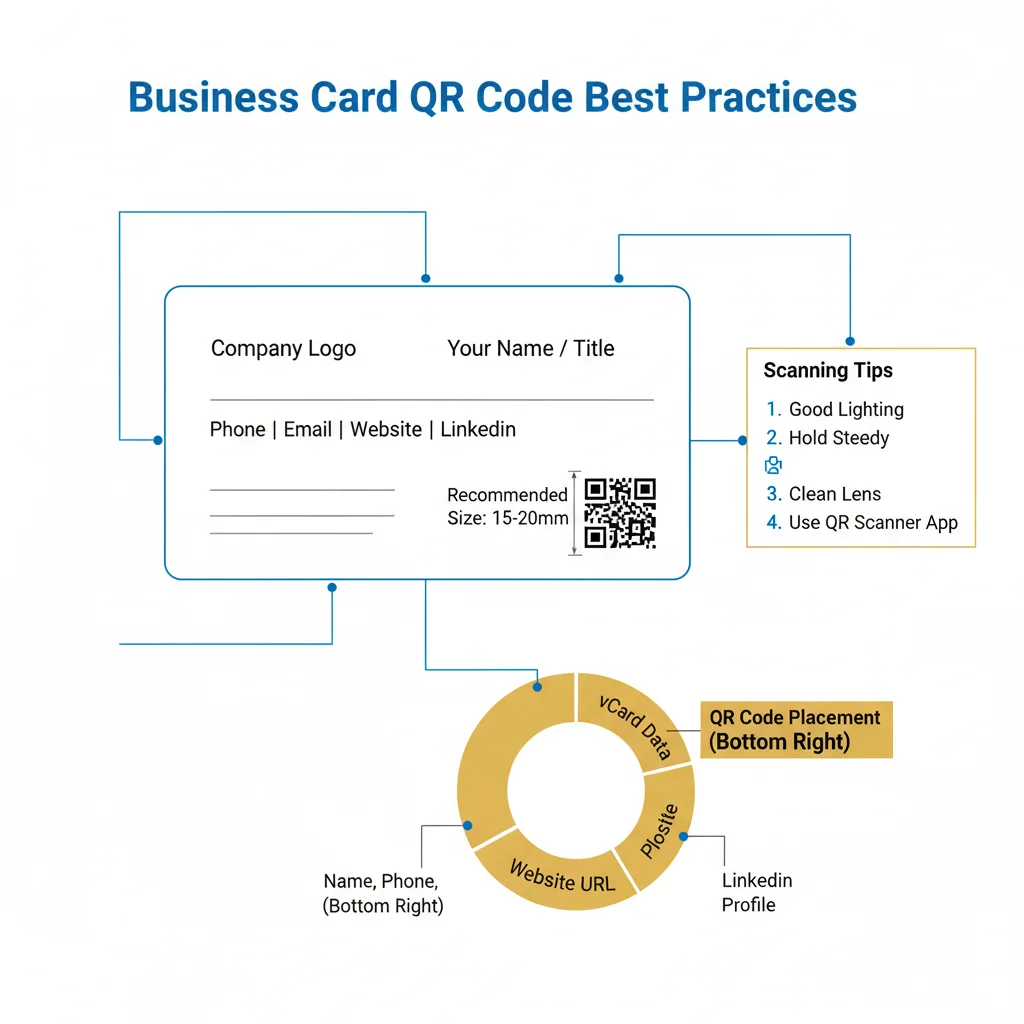
Size Requirements
For a standard business card (85 x 55mm / 3.5 x 2 inches):
- Minimum size: 15 x 15mm (0.6 x 0.6 inches)
- Recommended size: 20 x 20mm (0.8 x 0.8 inches)
- Maximum practical size: 25 x 25mm (1 x 1 inch)
Remember to include the quiet zone (white border) within these dimensions—the scannable code itself will be slightly smaller.
Placement Options
Back of card (centered): The most common placement. Dedicates the back to the QR code with a clear call-to-action.
Back of card (corner): Allows space for additional information like a tagline or brand message.
Front of card (corner): Keeps everything on one side but requires careful design balance.
Integrated design: QR code becomes part of the visual design. Requires more design skill but creates a unique look.
Design Best Practices
Match Your Brand
Customise your QR code colours to align with your brand palette. The foreground should be darker than the background—this is non-negotiable for scannability.
Add Your Logo (Carefully)
You can add a small logo to the centre of your QR code, but keep it under 30% of the code area. Use higher error correction (H level) when adding logos to ensure the code remains scannable.
Maintain Contrast
The contrast ratio between foreground and background should be at least 4:1. Test thoroughly—what looks good on screen may not scan well when printed.
Quiet Zone
Ensure adequate white space around the QR code. Don't let other design elements encroach on this border.
Testing Your Business Card QR Code
Before ordering hundreds of cards, test thoroughly:
- Print a proof: Test on the actual card stock, not plain paper
- Test multiple devices: iPhone, Android, older phones
- Test different apps: Native camera, dedicated QR scanners
- Test lighting conditions: Office lighting, dim restaurants, outdoor sun
- Verify the data: Check every field saves correctly to contacts
Static vs Dynamic: Which for Business Cards?
Static vCard QR Codes
Pros: Works forever, no service dependency, complete privacy
Cons: Cannot update information without reprinting cards
Dynamic QR Codes
Pros: Update contact info without reprinting, track who scans
Cons: Depends on redirect service, may require subscription
Our recommendation: For business cards, static vCard QR codes are usually better. Contact information doesn't change often, and you want the reliability of a code that works forever without any service dependency.
Call-to-Action: Tell People What to Do
Don't just put a QR code on your card—tell people what happens when they scan it. Effective CTAs include:
- "Scan to save my contact"
- "Scan to add me to your contacts"
- "Save my details instantly"
- "Scan • Save • Connect"
Brief, clear instructions significantly increase the number of people who actually scan.
Professional Printing Tips
- Use high-resolution files: Download SVG or high-res PNG (300+ DPI)
- Avoid glossy finishes: Glare makes scanning difficult; matte or soft-touch is better
- Choose quality stock: Thick, quality card stock prints better and feels more professional
- Request a digital proof: Check QR code clarity before full printing
Create Your Business Card QR Code
Ready to upgrade your business cards? Our free vCard QR code generator lets you create customised codes in seconds. Enter your details, match your brand colours, and download in print-ready format—no signup required.
Create Your QR Code Now
Free, fast, and no signup required. Start creating professional QR codes today.
Free QR Code Generator