
How to Create a QR Code: Complete Guide for 2025
Learn how to create QR codes for free in minutes. Step-by-step guide covering URL, vCard, WiFi, and more. Includes customization tips and best practices.
QR codes have become an essential tool for businesses and individuals alike. Whether you want to share a website link, contact information, or WiFi credentials, creating a QR code is surprisingly simple when you know the right steps.
In this comprehensive guide, we'll walk you through everything you need to know about how to create a QR code that works reliably and looks professional.
What is a QR Code and Why Do You Need One?
A QR (Quick Response) code is a two-dimensional barcode that smartphones can scan instantly. Unlike traditional barcodes, QR codes can store much more information and link directly to digital content like websites, contact cards, or WiFi networks.
Common uses for QR codes include:
- Linking to websites and landing pages
- Sharing contact information (digital business cards)
- Connecting guests to WiFi networks
- Displaying restaurant menus
- Collecting Google reviews
- Event check-in and ticketing
Step-by-Step: How to Create a QR Code for Free
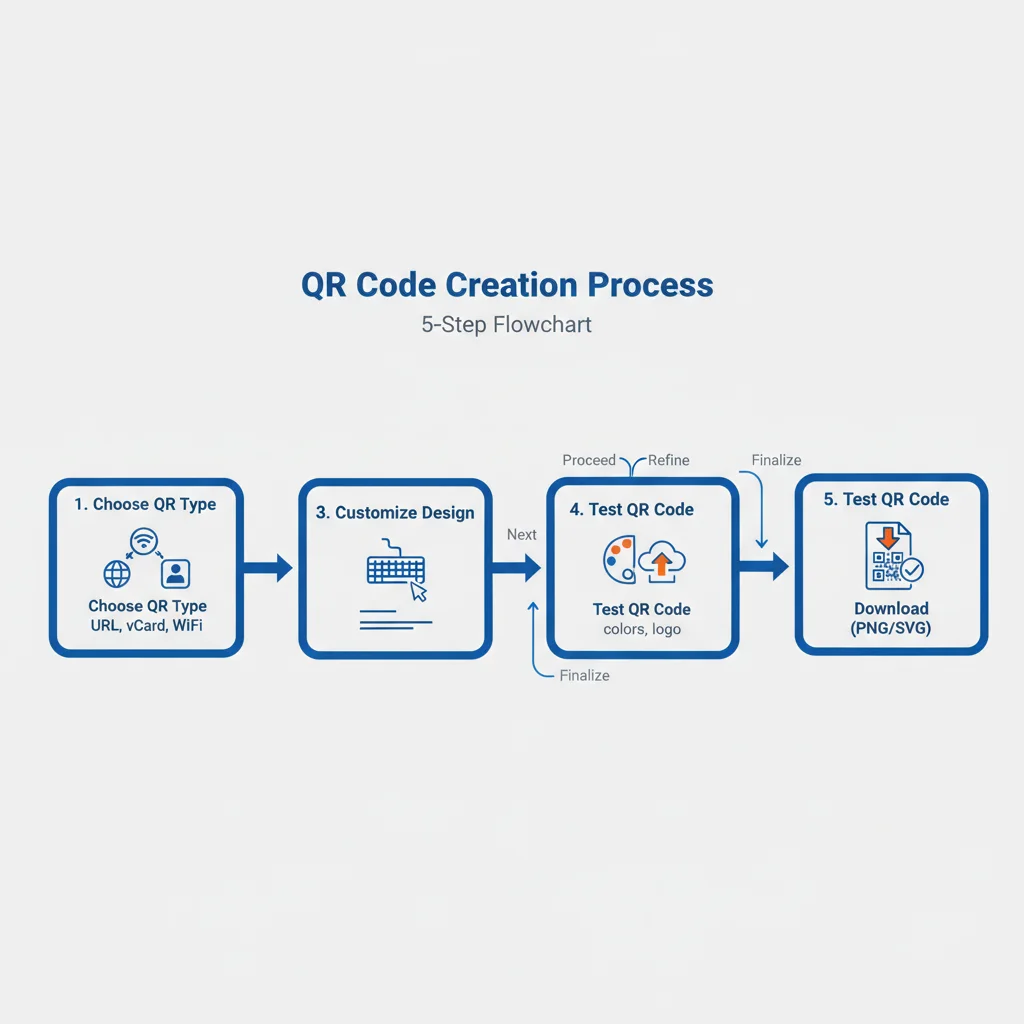
Step 1: Choose the Right QR Code Type
Before creating your QR code, determine what type you need. Each type encodes information differently:
- URL QR Code: Links to any website or web page
- vCard QR Code: Stores contact information that saves directly to phones
- WiFi QR Code: Automatically connects devices to your network
- Email QR Code: Opens a pre-filled email draft
- Phone QR Code: Initiates a phone call when scanned
Step 2: Enter Your Information
Once you've selected your QR code type, enter the relevant information. For a URL QR code, this means pasting your website link. For a vCard, you'll enter your name, phone number, email, and other contact details.
Pro tip: Keep URLs short when possible. Shorter URLs create simpler QR codes that are easier to scan, especially at smaller sizes.
Step 3: Customize Your QR Code Design
Modern QR codes don't have to be boring black and white squares. You can customize them to match your brand:
- Colors: Change the foreground and background colours. Ensure the foreground is darker than the background for reliable scanning.
- Patterns: Some generators offer different dot patterns (squares, circles, rounded corners)
- Logo: Add your company logo to the center for brand recognition
Important: Maintain at least 40% contrast between your QR code colours. Very low contrast makes codes difficult or impossible to scan.
Step 4: Test Before Downloading
Always test your QR code before using it in production. Scan it with multiple devices:
- Test with both iPhone and Android devices
- Try scanning in different lighting conditions
- Test at the size you plan to print
- Verify the destination link is correct
Step 5: Download in the Right Format
Choose your download format based on how you'll use the QR code:
- PNG: Best for digital use (websites, emails, social media)
- SVG: Best for print materials (scales to any size without losing quality)
- PDF: Useful for professional printing
Static vs Dynamic QR Codes: Which Should You Choose?
When creating a QR code, you'll often choose between static and dynamic options:
Static QR codes permanently encode your information. Once created, the destination cannot be changed. They're ideal for content that won't change, like a permanent website homepage.
Dynamic QR codes use a redirect URL, allowing you to change the destination anytime without reprinting. They also track scan analytics like location, device type, and scan count.
For business use, dynamic QR codes are almost always the better choice due to their flexibility and tracking capabilities.
QR Code Design Best Practices
Size Matters
The minimum recommended QR code size is 2 x 2 cm (0.8 x 0.8 inches). This ensures reliable scanning across most smartphones. For items scanned from a distance (like posters or billboards), use the 10:1 rule: the QR code should be 1/10th of the scanning distance.
Quiet Zone
Always maintain a white border (quiet zone) around your QR code. This helps scanners identify where the code begins and ends. The quiet zone should be at least 4 modules wide on all sides.
Error Correction
QR codes have built-in error correction, allowing them to remain scannable even if partially damaged. Higher error correction levels (like H at 30%) allow for more customization (like adding logos) but create denser codes.
Common QR Code Mistakes to Avoid
- Inverting colours: The foreground should always be darker than the background
- Making codes too small: Tiny QR codes won't scan reliably
- Using low-contrast colours: Ensure sufficient contrast for scanning
- Linking to non-mobile-friendly pages: Always link to responsive websites
- Not testing: Always verify your QR code works before printing
- Using untrusted generators: Some free generators inject tracking or redirect through their servers
Security Considerations When Creating QR Codes
Be cautious about which QR code generator you use. Some free services may:
- Track users who scan your codes
- Insert advertising or redirects
- Expire codes after a certain time
- Sell your data to third parties
Choose a reputable QR code generator that respects user privacy and doesn't insert unwanted redirects.
Ready to Create Your QR Code?
Now that you understand the fundamentals, you're ready to create professional QR codes for any purpose. Whether you're making a QR code for your business card, restaurant menu, or marketing campaign, following these best practices ensures your codes will scan reliably and look great.
Try our free QR code generator to create customized QR codes with analytics tracking. No signup required - just enter your information and download your code in seconds.
Create Your QR Code Now
Free, fast, and no signup required. Start creating professional QR codes today.
Free QR Code Generator