
How to Create a Google Reviews QR Code (Get More 5-Star Reviews)
Generate a QR code that takes customers directly to your Google review page. Increase reviews by making it easy to leave feedback.
Google reviews can make or break a local business. More reviews mean better visibility in search results and greater customer trust. A Google reviews QR code removes friction from the review process, making it easy for happy customers to share their experience. Here's how to set one up and maximise results.
Why Google Reviews Matter
Local Search Ranking
Google considers review quantity, quality, and recency when ranking local businesses. More positive reviews mean better visibility when people search for services you offer.
Consumer Trust
93% of consumers read online reviews before making a purchase decision. A strong review profile builds credibility with potential customers who've never heard of you.
Conversion Rates
Businesses with higher ratings convert more browsers into customers. The difference between 3.5 and 4.5 stars can mean significantly more business.
Valuable Feedback
Reviews aren't just marketing—they're feedback. Identify what's working and what needs improvement directly from customer experiences.
Finding Your Google Review Link
Method 1: Google Business Profile Dashboard
- Go to business.google.com
- Select your business location
- Click "Get more reviews" or find "Share review form"
- Copy the provided link
This is the most reliable method and gives you the shortest, cleanest URL.
Method 2: Google Maps Search
- Search for your business on Google Maps
- Click on your business listing
- Click "Write a review"
- Copy the URL from your browser
Note: This URL may be longer. Consider using a URL shortener or dynamic QR code.
Method 3: Place ID Lookup
- Find your Place ID using Google's Place ID Finder
- Create a URL in this format:
https://search.google.com/local/writereview?placeid=YOUR_PLACE_ID
This method creates a direct link to your review form without intermediate steps.
Creating Your Google Reviews QR Code
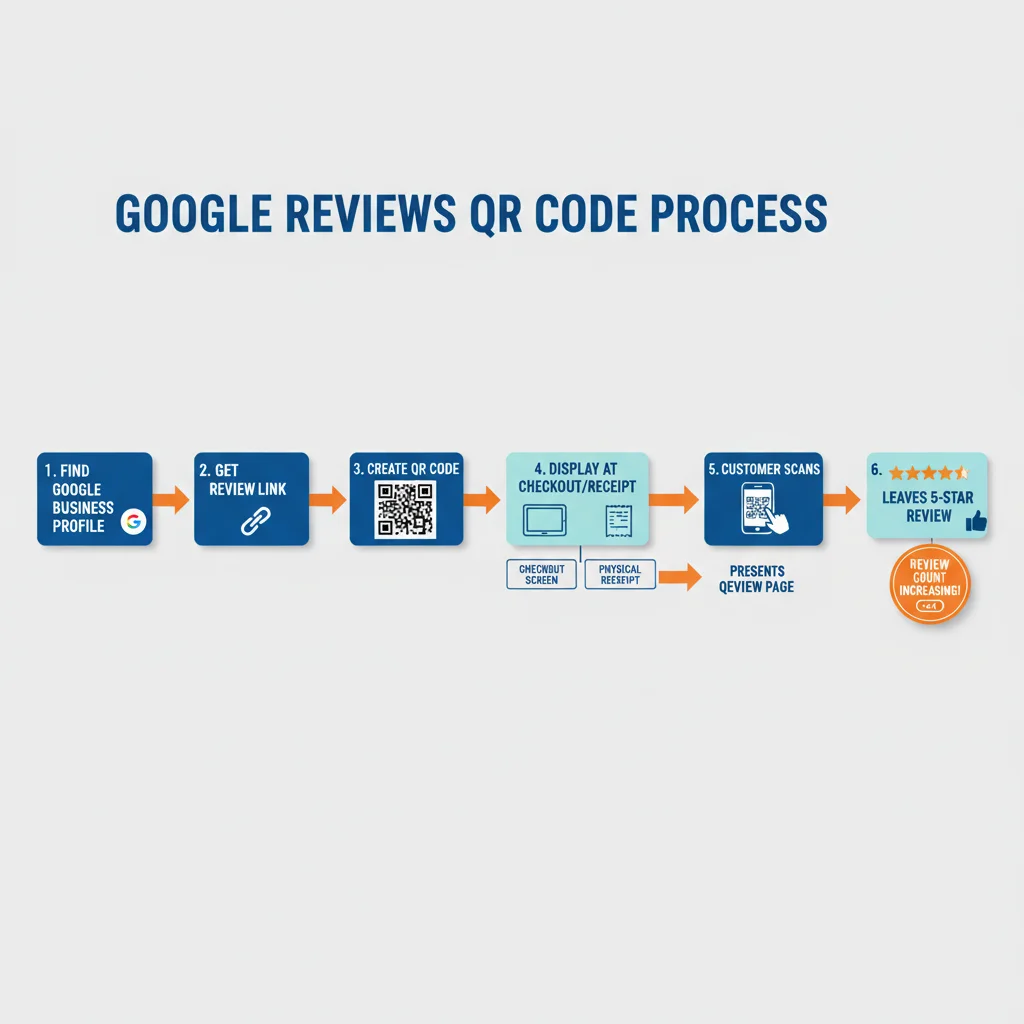
Step 1: Get Your Review Link
Use one of the methods above to obtain your Google review URL. Test it in a private browser window to ensure it opens directly to your review form.
Step 2: Generate the QR Code
Enter your review URL into a QR code generator. Select URL as the type. Consider using a dynamic QR code so you can track scans and update the link if Google changes their URL structure.
Step 3: Customise for Your Brand
Add your business colours and logo to make the QR code recognisable. Ensure good contrast for reliable scanning. Test on multiple devices.
Step 4: Add a Compelling Call-to-Action
The QR code alone won't inspire action. Pair it with motivating text:
- "Enjoyed your visit? Tell us on Google!"
- "Scan to leave a review"
- "Your feedback helps us improve"
- "Love your experience? Share it!"
Strategic Placement for Maximum Reviews
Point of Sale
Place QR codes at checkout counters, payment terminals, or where customers complete transactions. This captures them right after the purchase decision when satisfaction is high.
Receipts and Invoices
Print QR codes on receipts, invoices, or delivery slips. Customers review these documents at home when they have time to write a thoughtful review.
Thank You Cards
Include a QR code on thank-you cards, packaging inserts, or follow-up materials. The personal touch encourages reciprocation.
Business Cards
Add a small QR code to business cards with "Leave us a review" text. Networking contacts become review sources.
Email Signatures
Include a review link or small QR code image in email signatures. Every interaction becomes a review opportunity.
Table Tents (for hospitality)
Restaurants and cafes can place review QR codes on tables alongside menu QR codes. Capture feedback while the experience is fresh.
Waiting Areas
Salons, clinics, and service businesses can display QR codes in waiting areas. Customers often have phones in hand with time to spare.
When to Ask for Reviews
Timing Matters
The best time to request a review is:
- Immediately after positive interaction: A customer just thanked you enthusiastically? That's your moment.
- After successful service completion: Problem solved, project finished, order delivered successfully.
- When customers express satisfaction: "This was exactly what I needed" is your cue.
Train Your Team
Equip staff to recognise good review moments and mention the QR code naturally:
- "I'm so glad you're happy with the results! If you have a moment, we'd love if you could share your experience on Google—there's a QR code right here."
- "Thank you for your business! Feedback really helps us—scan this to leave a quick review if you have time."
Best Practices for Getting More Reviews
Make It Easy
The QR code should take customers directly to the review writing interface—not your business listing where they have to find the review button.
Don't Offer Incentives
Google prohibits incentivising reviews. Don't offer discounts, freebies, or entry into competitions in exchange for reviews. This can get your listing penalised.
Respond to All Reviews
Show that you read and value feedback. Thank positive reviewers. Address negative reviews professionally and constructively. Active engagement encourages more reviews.
Ask Everyone, Not Just Happy Customers
Display your QR code for all customers, not just those you think will leave positive reviews. Cherry-picking violates Google's policies and creates an inauthentic review profile.
Follow Up Appropriately
A polite follow-up email thanking customers for their business with a review link is acceptable. Repeated requests or pressure is not.
Handling Negative Reviews
More reviews means more chances for criticism. Handle negative reviews well:
- Respond promptly: Within 24-48 hours shows you care
- Stay professional: Never argue or get defensive publicly
- Acknowledge the issue: Show you understand their concern
- Take it offline: Offer to discuss further via email or phone
- Learn from it: Legitimate complaints highlight improvement opportunities
Measuring Your Review Campaign
Track these metrics to optimise your approach:
- Review count: Are reviews increasing over time?
- Average rating: Is quality staying high?
- QR code scans: How many people interact with your review prompts?
- Conversion rate: What percentage of scans result in reviews?
- Source performance: Which placements generate the most reviews?
Get Started
Ready to boost your Google reviews? Create a free QR code linking to your Google review page in seconds. Customise it with your brand colours, download in print-ready format, and start collecting the reviews your business deserves.
Create Your QR Code Now
Free, fast, and no signup required. Start creating professional QR codes today.
Free QR Code Generator